


Copy, shape and cut your model
14 minutes read
Published Updated

Watch
Highlights
- Select a body, then use Move/Rotate.
- Select the Copy badge to place a copy and keep the original.
- Keep a copy of the original if you need it for other purposes.
Highlights
- Select a face to see tools for it.
- Offset Face pushes or pulls a face.
- Fillet rounds an edge, Chamfer bevels it, Shell hollows the body.
Highlights
- Sketch on a face with a circle.
- Extrude upward to add material.
- Extrude downward to cut a hole.
Follow Along in Shapr3D
Open Shapr3D and try it as you watch.
Learn
This lesson follows the three videos. Each group below matches one of them.
Basic modeling tools
Move, copy, and reshape bodies with a handful of tools.
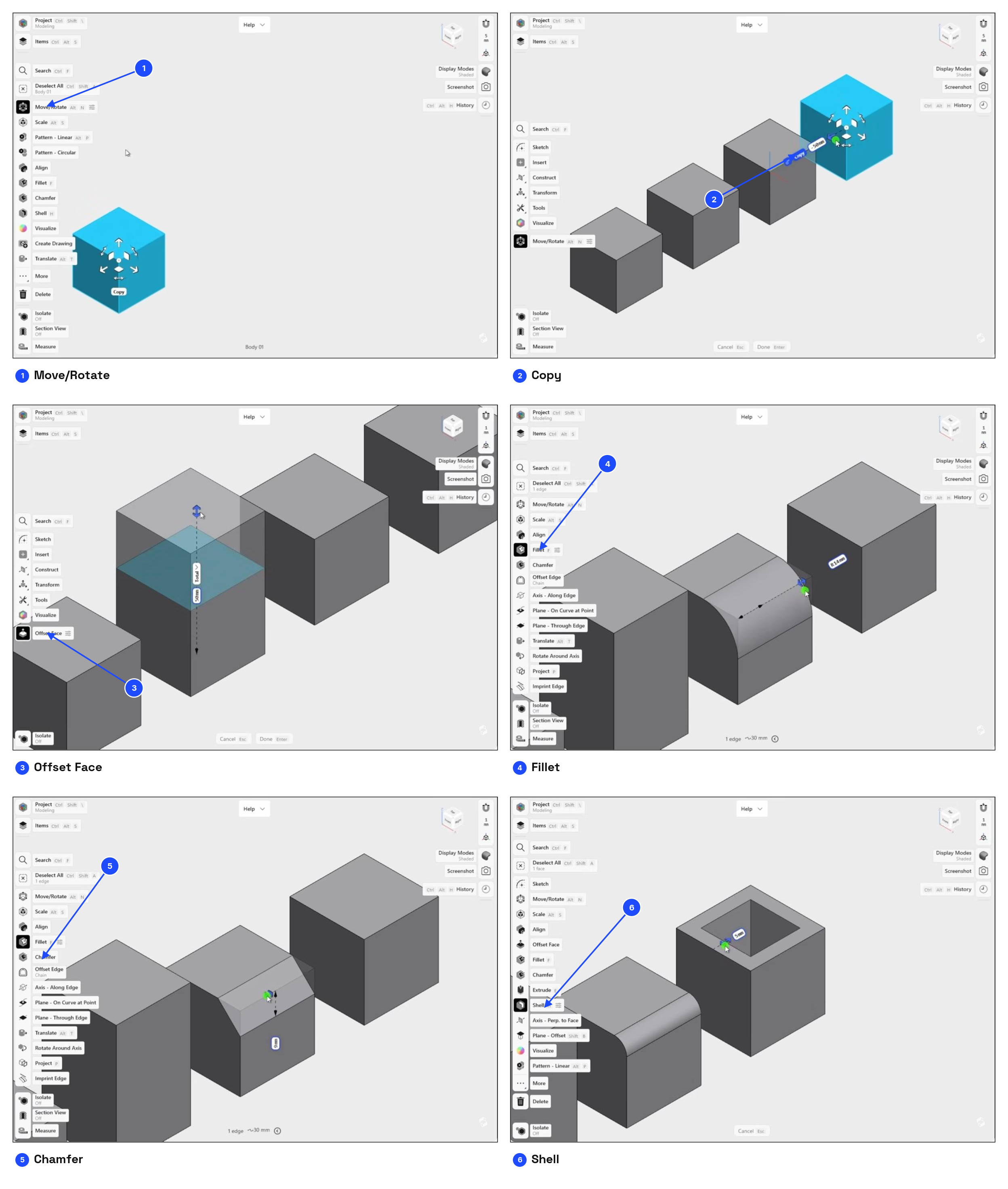
1. Move/Rotate - Reposition or rotate selected geometry using the gizmo.
2. Copy - Create a duplicate of selected geometry while keeping the original.
3. Offset Face - Move a face inward or outward to modify the shape or size of a body.
4. Fillet - Create a rounded transition along an edge.
5. Chamfer - Create a flat, angled transition along an edge.
6. Shell - Hollow out a body while maintaining a specified wall thickness.
Good to know
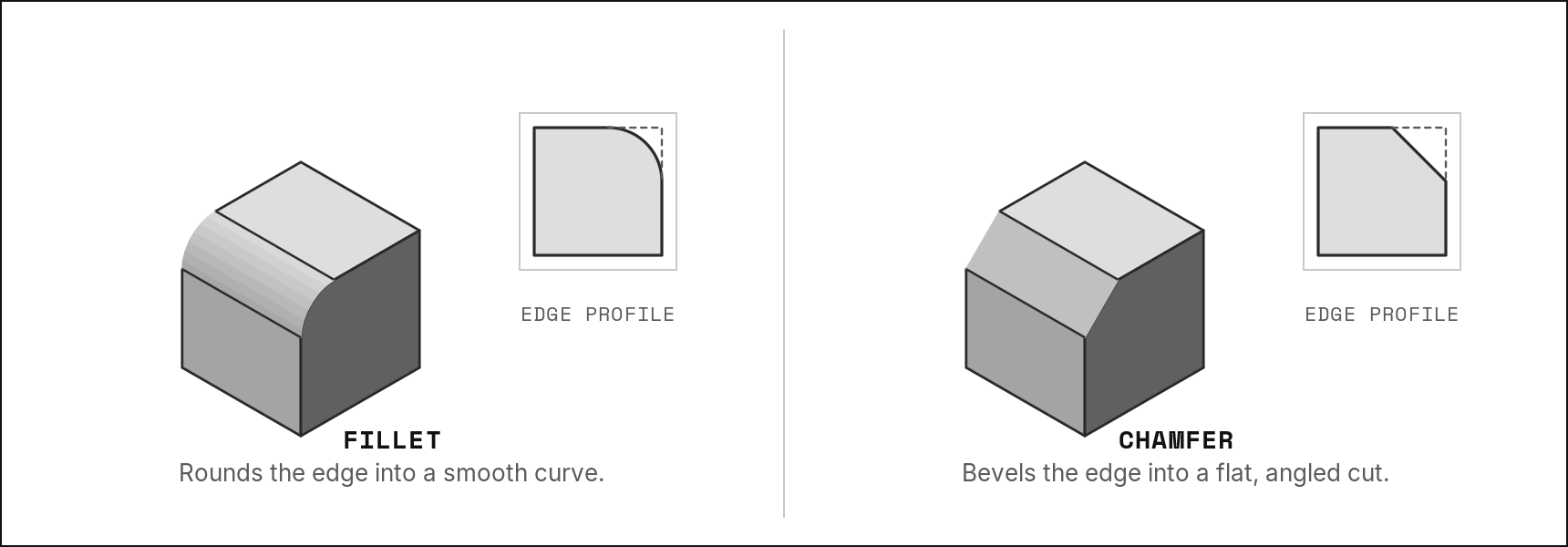
• Fillet vs. Chamfer - Fillet rounds an edge to create a smooth transition. Chamfer bevels an edge to create a flat, angled transition.
Sketching on a body
Use a face of a body as the place to start a new sketch.
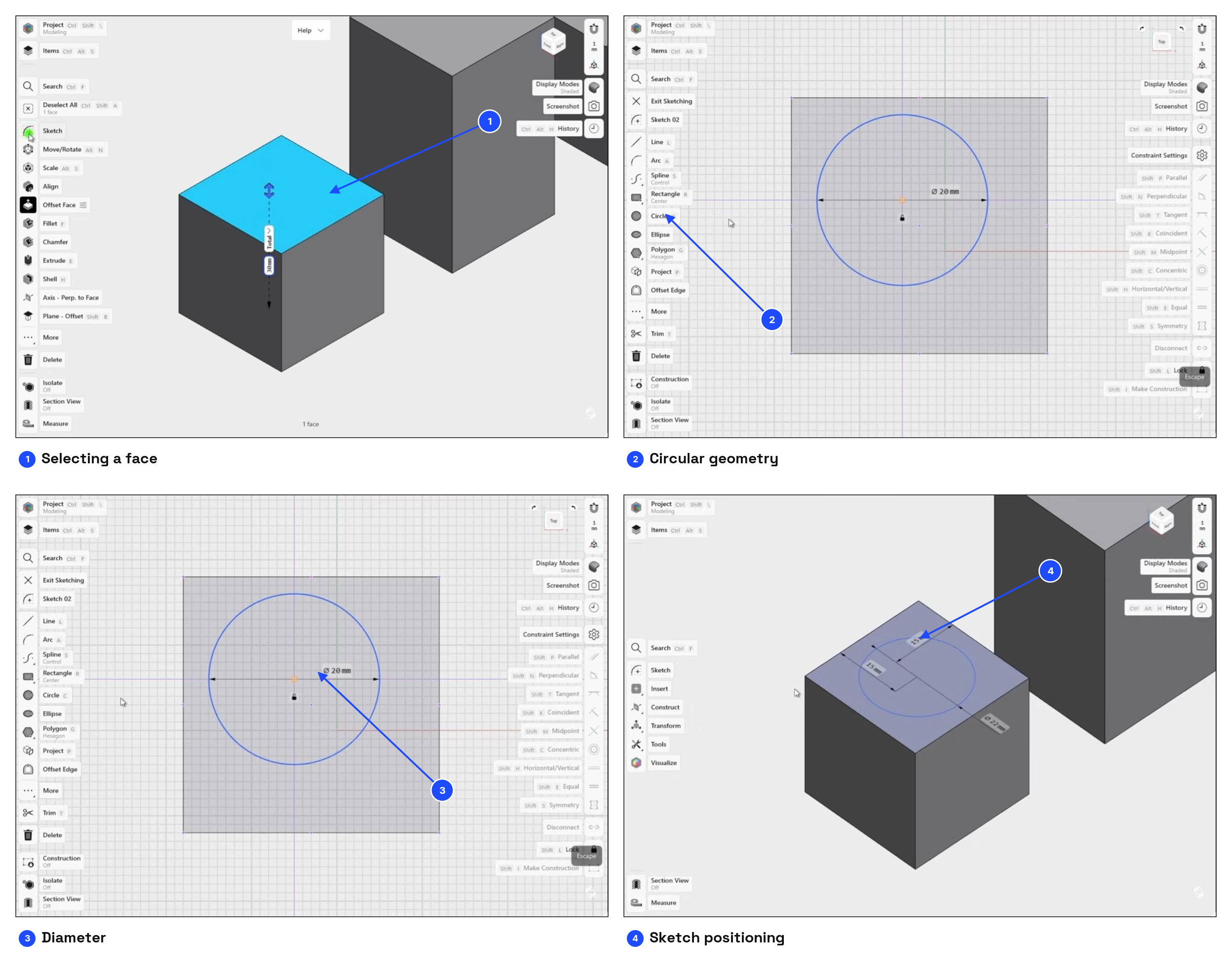
1. Selecting a face - A flat face of an existing body can serve as a sketch plane.
2. Circular geometry - Create circular profiles that can be used to add or remove material.
3. Diameter - Define the exact size of a circle using its diameter.
4. Sketch positioning - Position sketch geometry precisely by defining its distance from existing geometry.
Adding and removing geometry
Extrude a sketch to build up or cut away material.
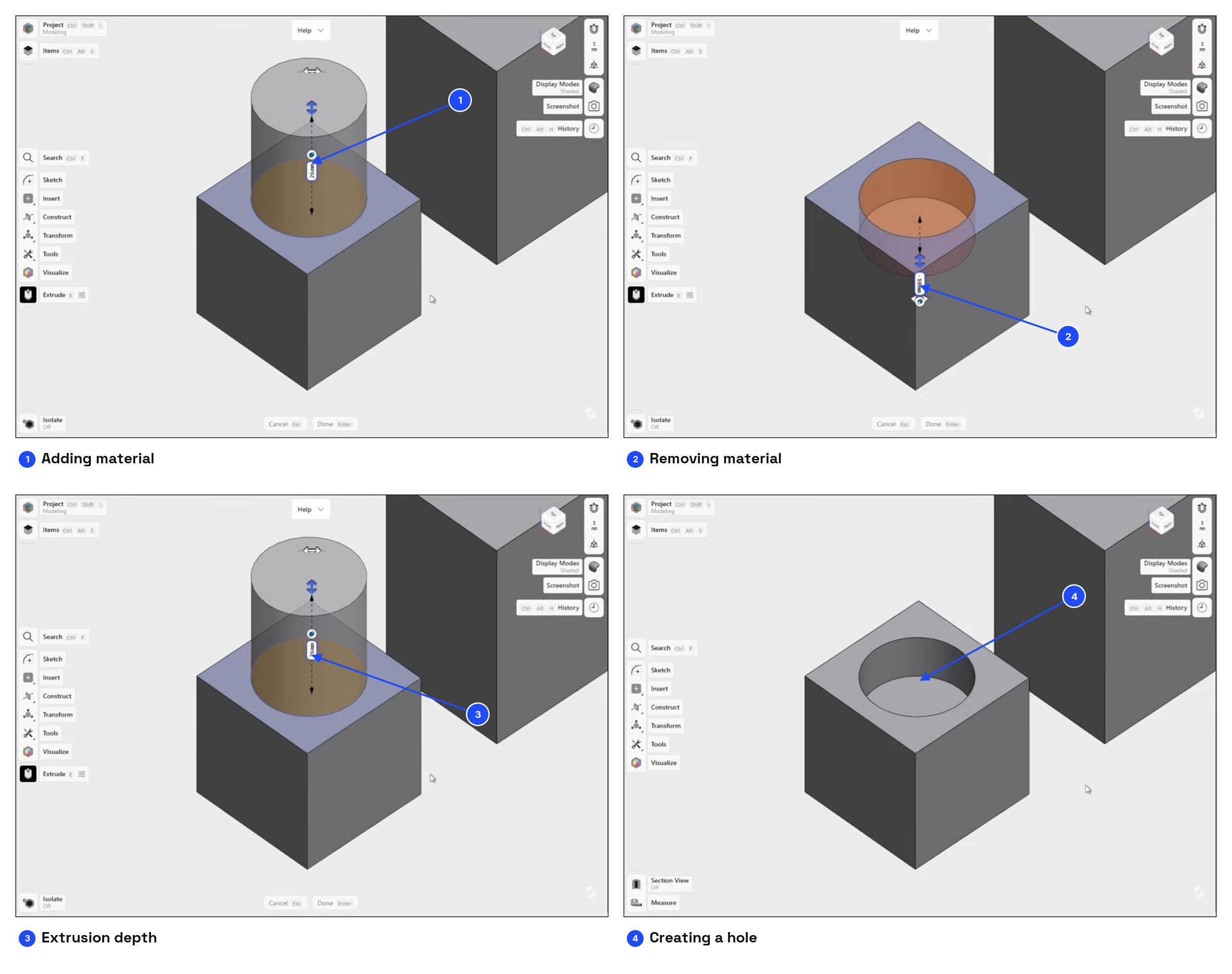
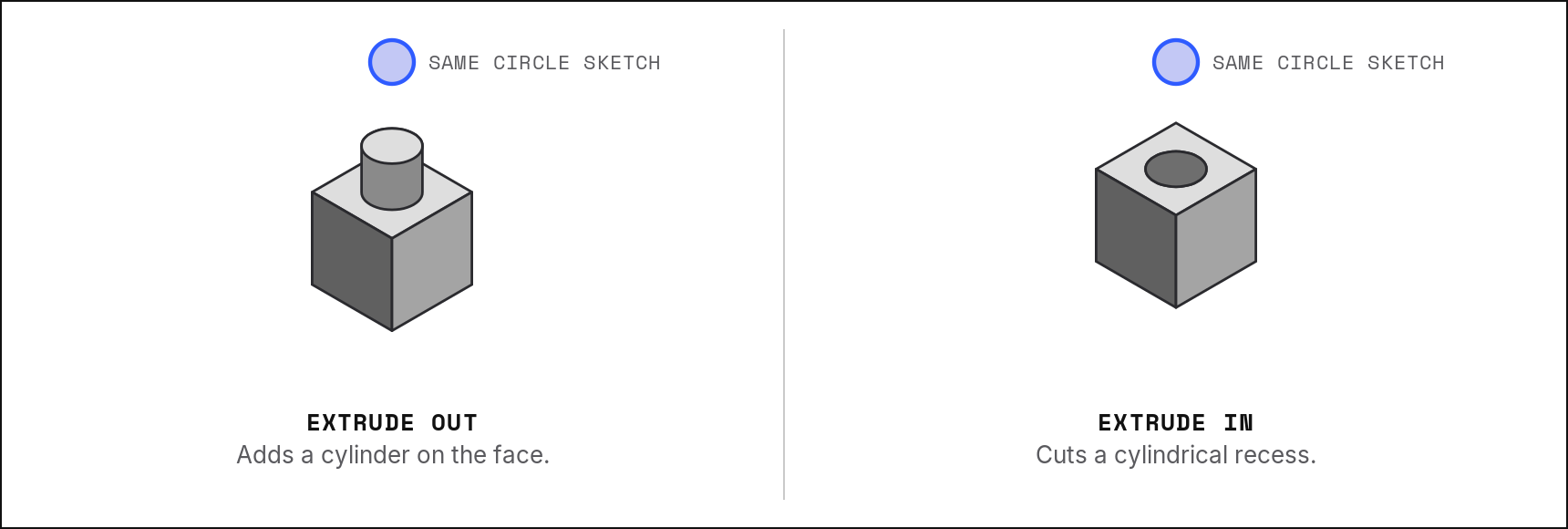
1. Adding material - Extrude a sketch profile outward from an existing body to extend its geometry.
2. Removing material - Extrude a sketch profile into an existing body to remove material.
3. Extrusion depth - Control how much material is added or removed by specifying an exact distance.
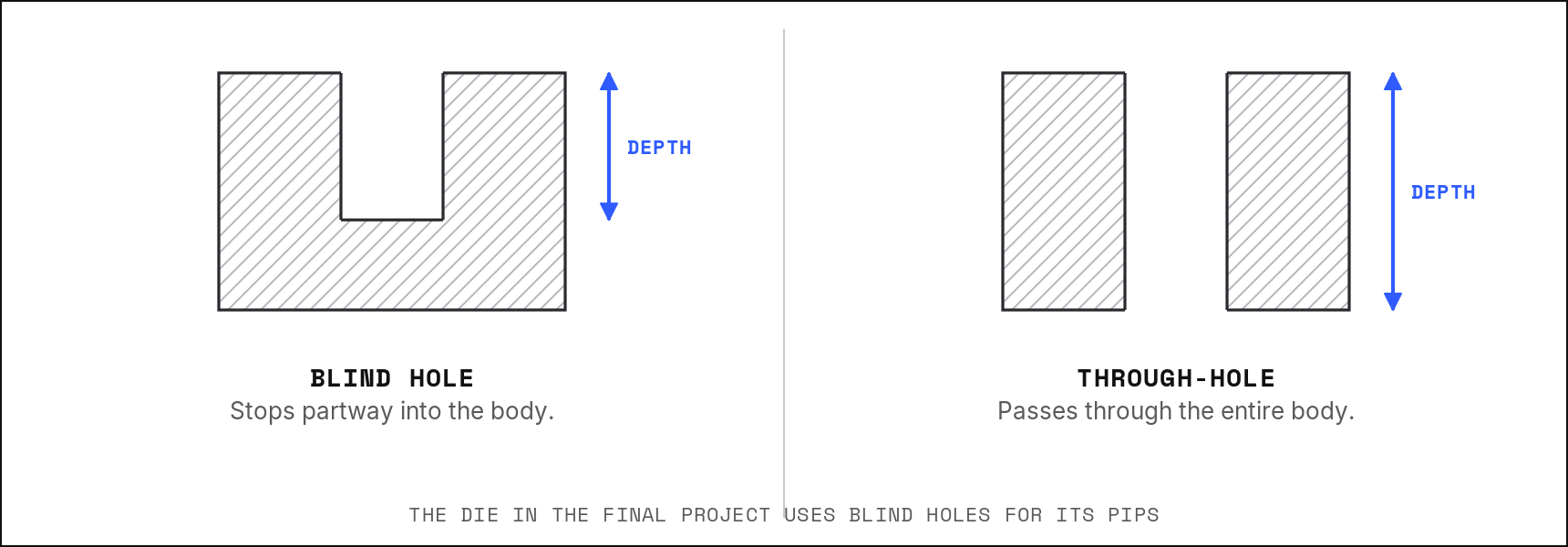
4. Creating a hole - Extrude through the entire body to create a through-hole.
Good to know
• Adding vs. removing material - Extrude can add material to create protrusions and extensions, or remove material to create holes, recesses, and cutouts.
• Blind holes vs. through-holes - A blind hole extends only partway into a body, while a through-hole extends through the entire body. Control the extrusion depth to achieve the desired result. This matters for the final project, where you'll create recessed circular features for the die.
Summary
1. Select the Copy badge to keep a copy of the original.
2. Fillet rounds an edge and Chamfer bevels it.
3. Shell hollows a body to a set wall thickness.
4. Sketch a circle on a face and extrude down to cut a hole.